Open Pixlr Express and upload your photo.
Draw On Image For Free
With Pixlr Express’s free Draw Tool, adding a personal touch to any image is easy and accessible. Sketch, fill, and shape your designs with customizable tools, apply unique effects, and even explore advanced AI features to elevate your creations effortlessly.
How To Draw On Images Using Pixlr Draw Tool
1
2
Select Drawing from the left menu, then choose the tool you want to draw with.
3
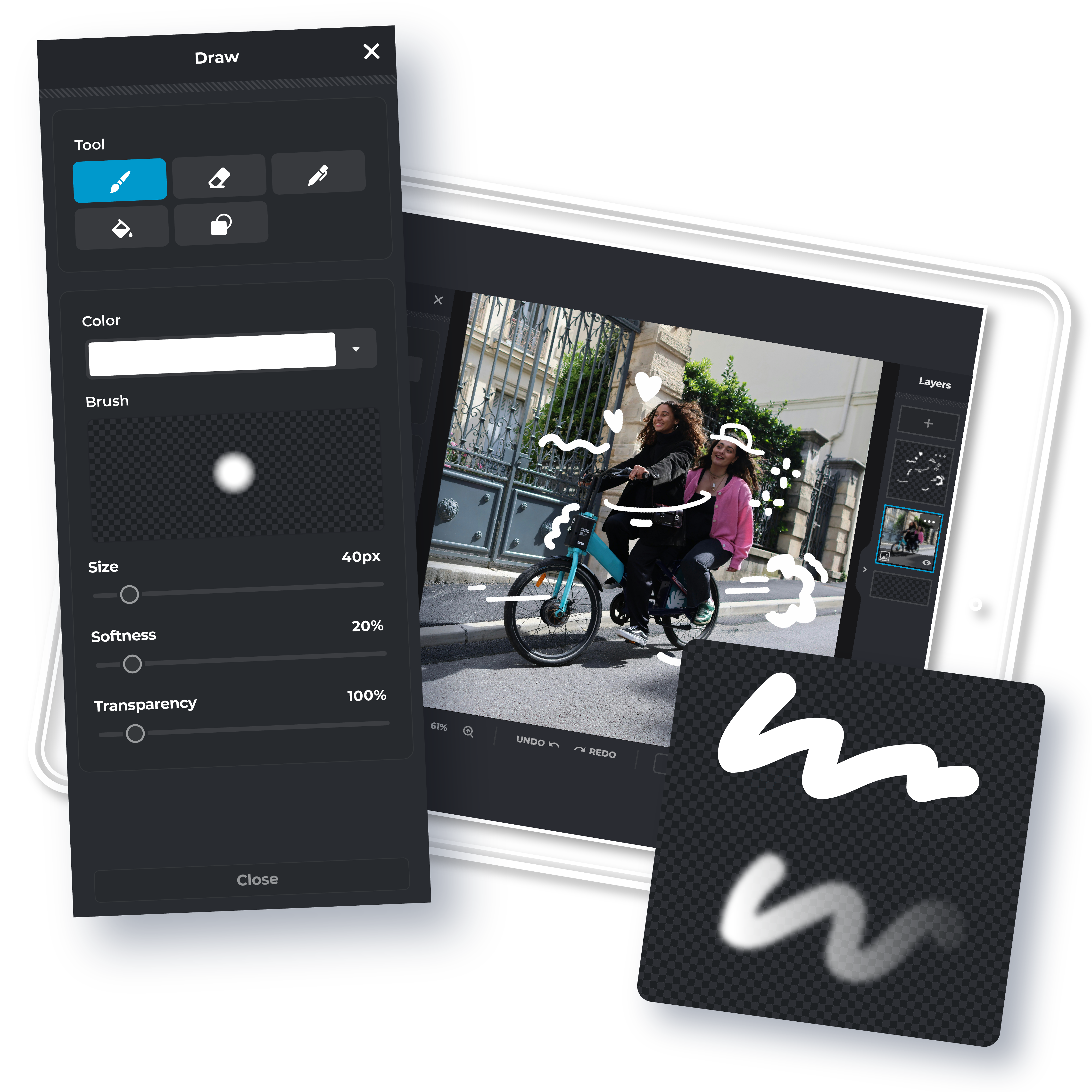
Select color and use sliders to adjust size, softness, opacity, and other settings to make your drawing precise.
4
Once you are done drawing, save your image in PNG, JPG, PDF, or WebP format.
The Simplest Image Drawing Tool Online
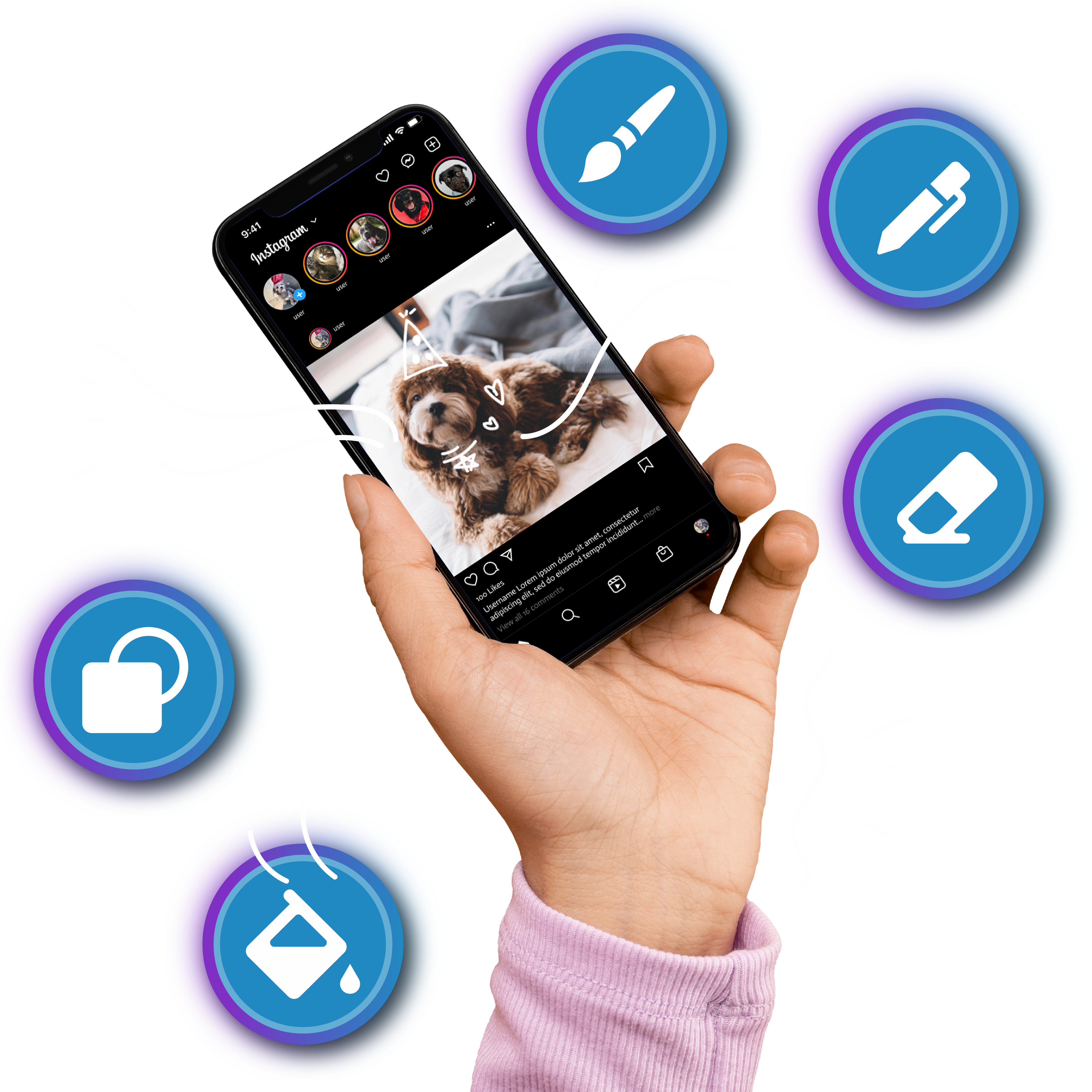
Pixlr Express brings an easy and accessible drawing tool for every level, from beginners to seasoned artists needing quick solutions. This Draw Tool’s streamlined design ensures that you can create without the hassle of complex controls. In just a few clicks, you’re able to start drawing, adding personal touches, or crafting unique visuals directly on any image. Whether personalizing photos, adding graphics for social media, or simply expressing your creativity, Pixlr Express offers the easiest, most intuitive way to draw and edit online.
All In One Draw Tool
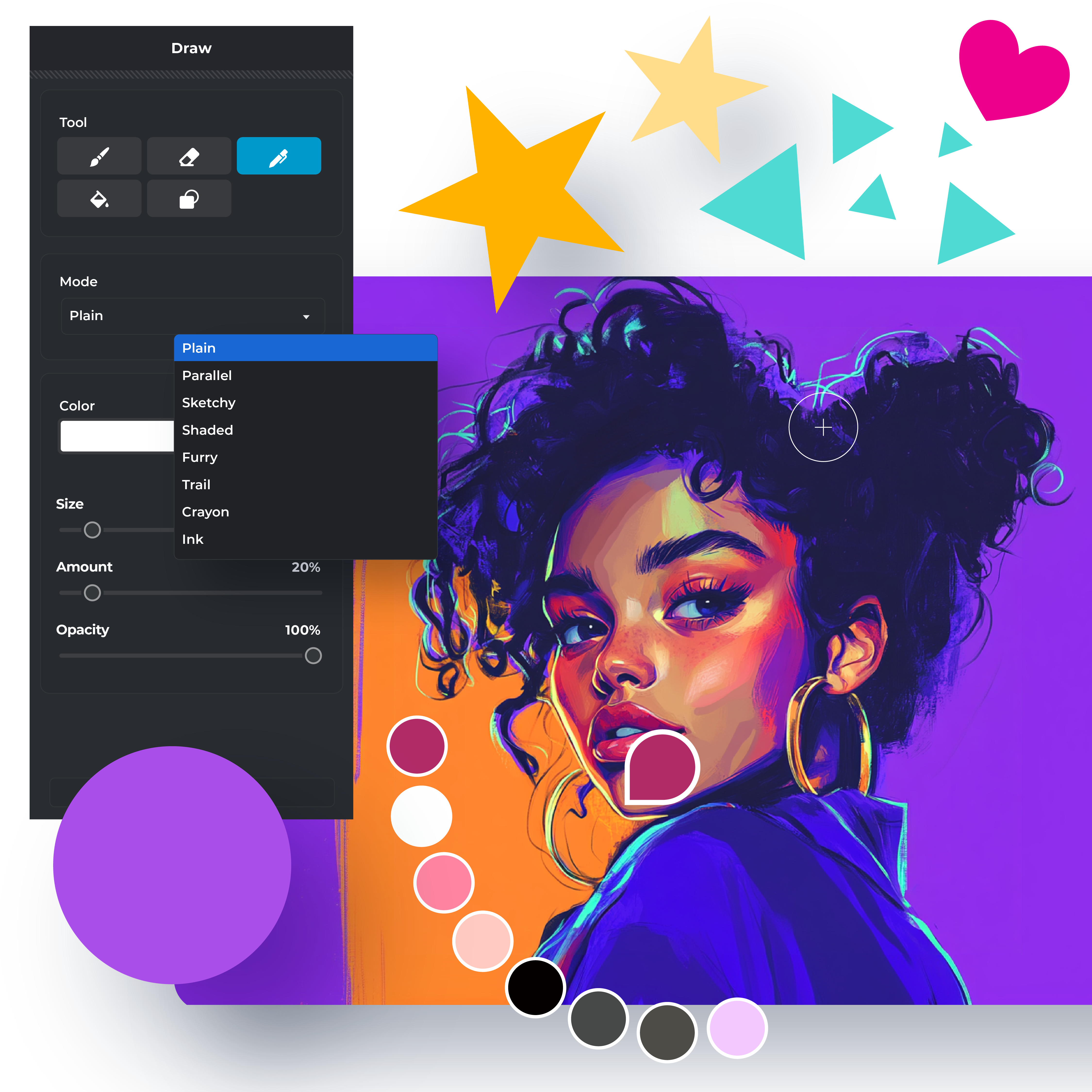
The Pixlr Draw Tool combines everything you need to kick-start your creative journey. With its Brush Tool, you can draw, color, and shade directly on your image. The Eraser Tool refines your work with precision, and the Pen Tool offers modes like Sketchy, Crayon, and Ink for unique textures and styles. The Fill Tool allows fast color fills, perfect for solid color blocks, while the Shape Tool lets you add rectangles, circles, stars, and more for geometric effects. Each tool is thoughtfully designed to simplify your drawing and editing process, all in one place.
Spark Creativity Customizable Settings
Each draw tool’s setting offers a fully personalized experience for one-of-a-kind artwork. The Brush Tool has size, softness, and transparency controls for perfect strokes. The Eraser Tool is also adjustable in size, softness, and transparency, enabling seamless blending. The Pen Tool comes with options for size, amount, and opacity to produce textured effects. The Fill Tool offers tolerance and opacity controls with anti-alias and contiguous toggles for clean, smooth fills. Finally, the Shape Tool enables outline and fill colors with adjustable outline sizes.
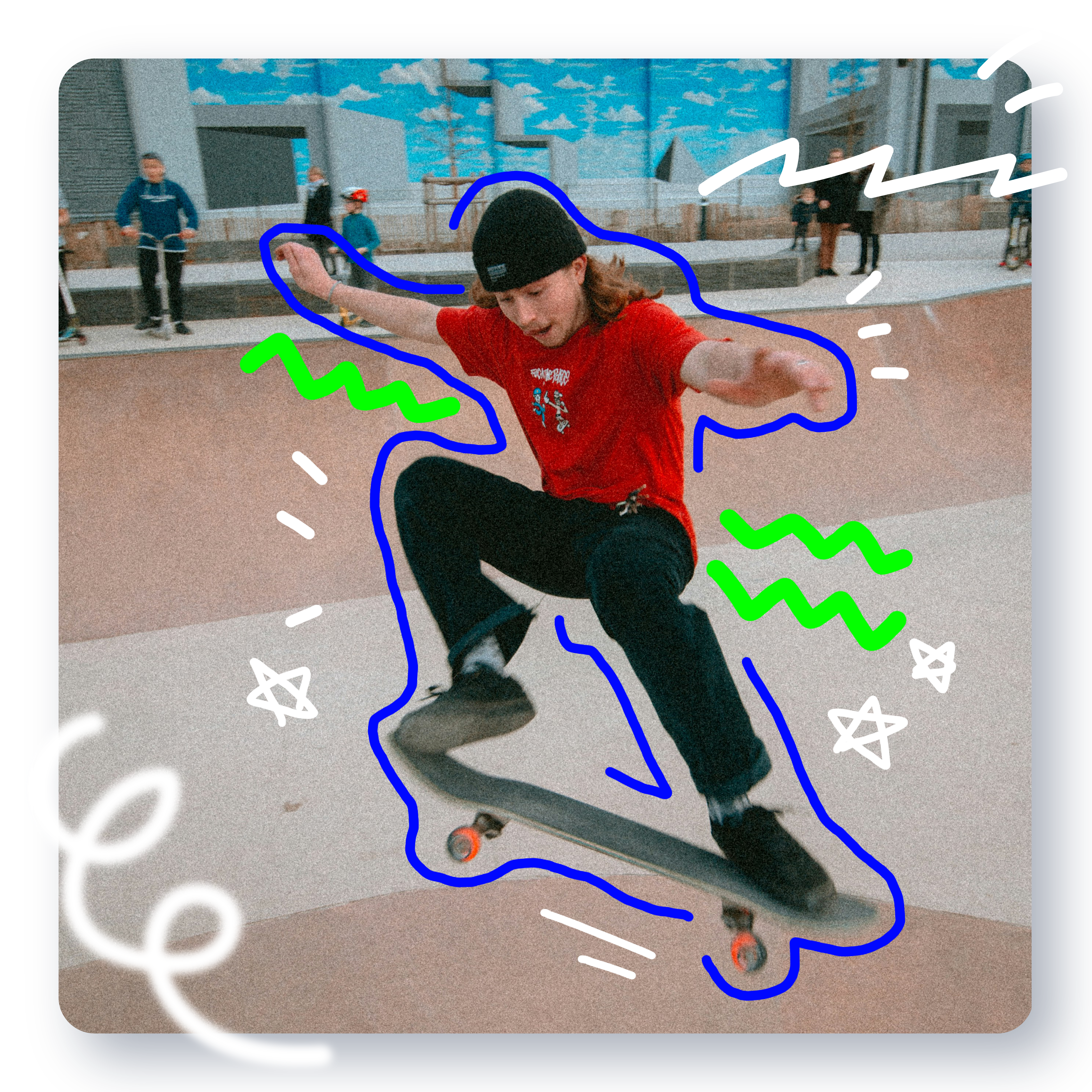
Create Unique Art By Drawing On Image
Pixlr Express lets you turn any image into a canvas for unique creations. Start with a photo or graphic and use the Draw Tool to draw designs or shapes in different colors, transforming it into something uniquely yours. Once you’re done drawing, elevate your creation further by applying Pixlr’s diverse effects and filters. You can explore vintage styles, high-contrast pops, or soft-focus finishes, giving your work a distinctive look. Perfect for social media graphics, decorative photos, or personalized art, Pixlr Express helps transform any image.
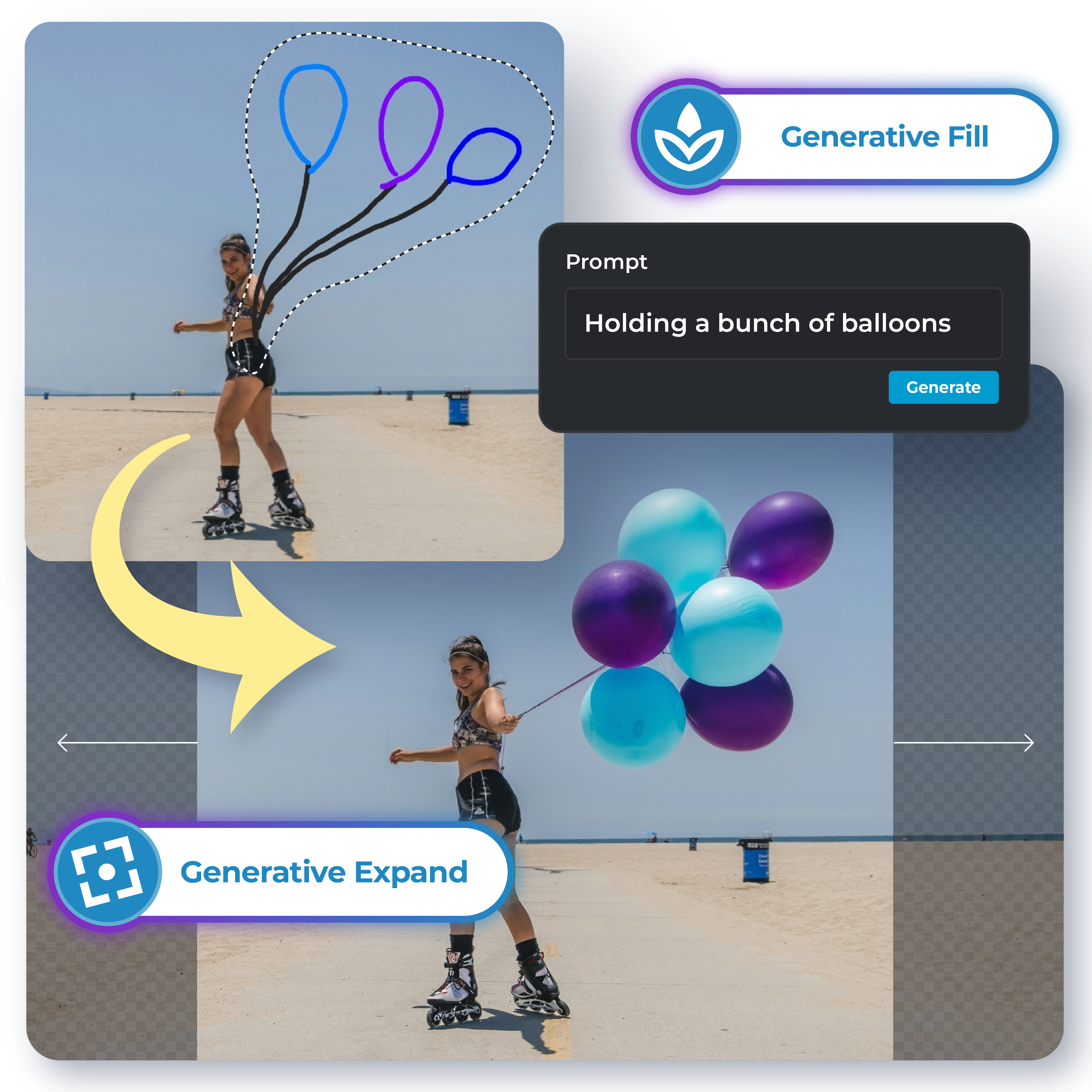
Push Your Creative Boundaries With AI Tools
Pixlr Express goes beyond traditional drawing, offering advanced AI tools to elevate your artwork. Once you’ve customized your image, Generative Fill completes your design seamlessly, while Generative Expand broadens your canvas in any direction. For a polished finish, Remove Noise smooths details, and Super Scale upscales artwork without sacrificing quality, perfect for printing or sharing. These AI tools expand creative possibilities, allowing you to explore and achieve professional-level results with a few simple clicks.
Do More with Pixlr AI Tools
Frequently Asked Questions
How do I add a drawing to my image?
You can easily draw on any image using Pixlr’s Draw Tool. Just upload your image to Pixlr Express, then navigate to the Drawing menu to select your tool of choice, and start drawing.
Can I delete the things that I have already drawn on an image?
Yes, the Pixlr Draw Tool includes an Eraser for quick adjustments to any unwanted lines, shapes, or strokes. Simply select the Eraser tool from the Drawing menu and paint over the parts you wish to remove.
How can I soften my stroke?
To soften the edges of your strokes, adjust the softness slider in the Drawing menu. Increasing the softness value will make the brush edges more blended, giving you smoother, gentler strokes.
Can I change the color of my paint brush?
Absolutely! In the Drawing menu, click on the color picker to select a new color for your brush. You’ll find a wide array of colors to choose from, letting you customize each stroke.
Why would you draw on your picture?
Some users love adding illustrations or text as a form of creative expression, while others use drawing tools to create fun edits, design fan art, or add watermarks for image protection.
If I draw on someone else's picture, do I own the copyright?
If you’re drawing on images that aren’t your own, you may need permission or licensing to use them. Always check for usage rights or ask for permission to avoid potential copyright issues, especially if you plan to publish or sell your work.
Can I keep the photo I've made?
Of course! Once you’re finished, you can download and share your creation on social media, add it to your digital scrapbook, or start a new project.